FancyMenu in Modpacks
Including your FancyMenu setup in a modpack is very easy and only takes some simple steps.
Including the FancyMenu Setup in Your Modpack
The main thing you need to do is copy one special folder that FancyMenu uses to save all your designs.
What you'll need to find
- Your "Minecraft Instance" Folder: This is the main folder on your computer where all the files for a specific Minecraft setup (like the one where you designed your menus) are stored. Launchers like CurseForge and Modrinth call these "instances" or "profiles."
- The
configFolder: Inside your Minecraft instance folder, there's usually a folder namedconfig. This is where many mods store their settings. - The
fancymenuFolder: Inside thatconfigfolder, FancyMenu creates its own folder calledfancymenu. This is the golden folder we need!
How to Find the Instance Save Location
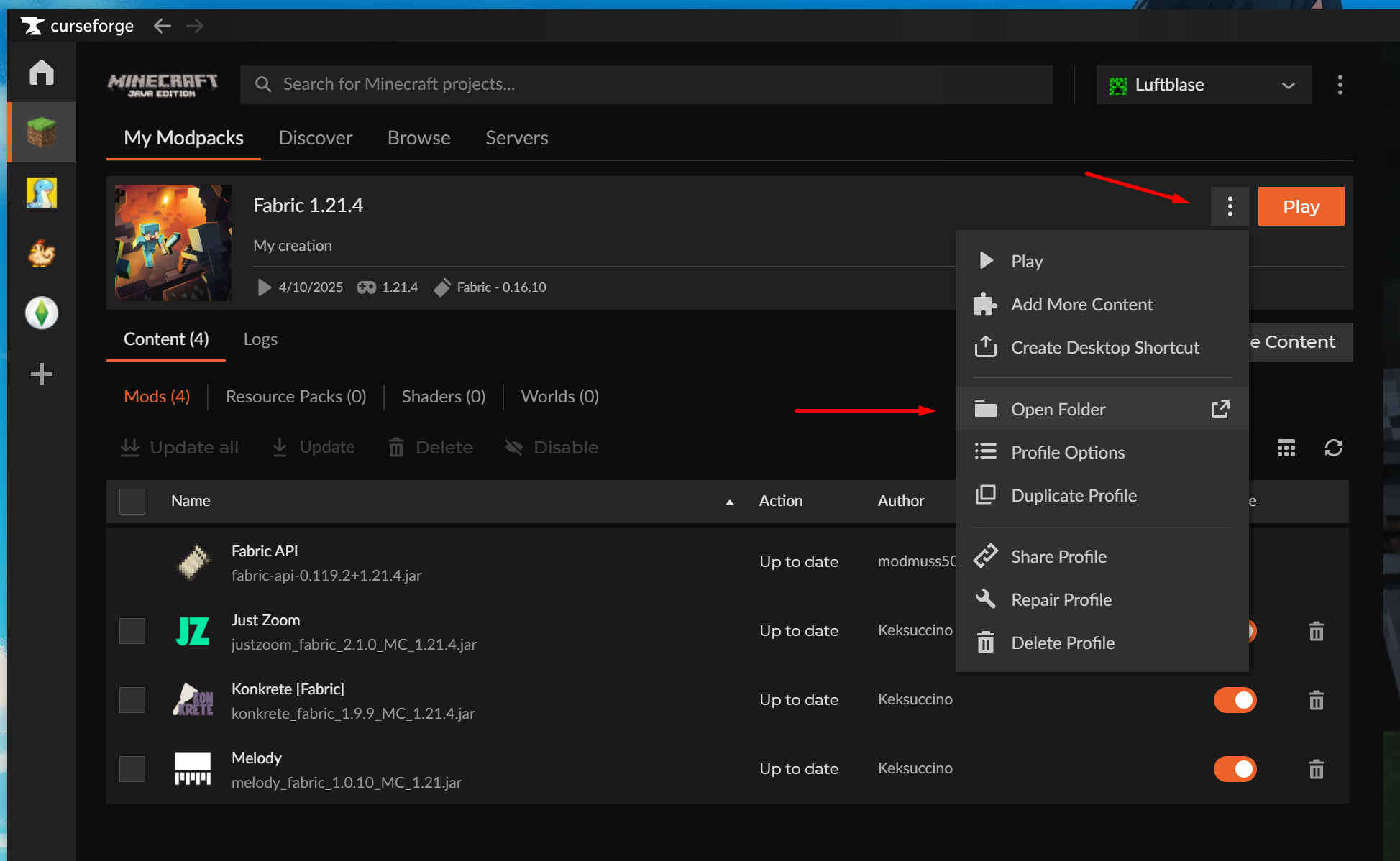
If you use the CurseForge App
- Open CurseForge.
- Find your Minecraft profile/instance in the list and open it.
- Click the three dots.
- Choose "Open Folder." This will open the main folder for that Minecraft instance.
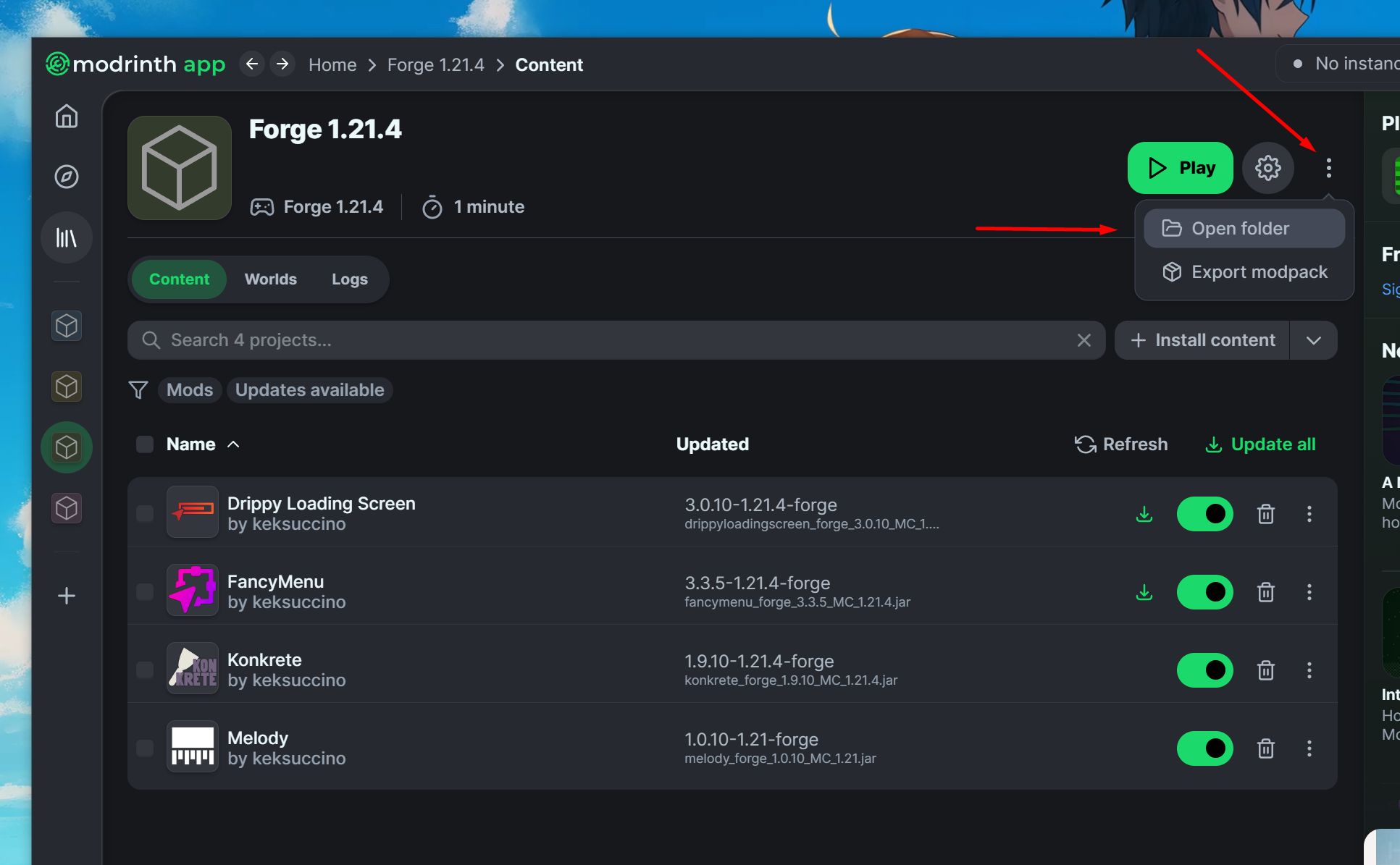
If you use the Modrinth App
- Open the Modrinth App.
- Find your Minecraft profile/instance in the list and open it.
- Click the three dots.
- Choose "Open Folder." This will open the main folder for that Minecraft instance.
For other launchers
Look for a similar "Open Folder," "Open Instance Folder," or "View Files" option for your specific Minecraft setup.
Copying the FancyMenu Setup
- Navigate to the
configfolder of your MODPACK instance (the one you want to copy your setup to). - If there is a
fancymenufolder inside, DELETE it. - Open the
configfolder of the SOURCE instance (the one you want to use the setup from). - Copy the
fancymenufolder inside theconfigfolder of your SOURCE instance to theconfigfolder of your MODPACK instance. - Done. That's it. Restart your modpack instance now and you should see the setup load.
Disabling the Menu Bar and Hotkeys
You surely don't want to keep FancyMenu's menu bar visible in your modpack, so you should disable it. But since people can still press the hotkey to make it visible again, let's do something a little bit more aggressive.
Navigate to <game-directory>/config/fancymenu/options.txt and open the file in a text editor.
Now set modpack_mode to true and save the file.
This will completely disable all overlays and hotkeys.
To be able to edit your layouts again, set the config option back to false.
Disabling the Welcome Screen
This shouldn't be needed in most cases, but if you didn't close the Welcome screen yet (the screen that tells you to read the documentation), make sure to set show_welcome_screen to false in <game-directory>/config/fancymenu/options.txt.
The screen only shows once and disables itself when clicking on the Open Documentation button, so again, doing this manually shouldn't be needed in most cases.